A blue screen is a Windows crash report, not a diagnosis: the stop code, timing and recent changes point toward the cause. You will learn how to collect useful evidence, test driver and hardware possibilities safely, protect your data and judge whether a Hinjewadi repair service is giving you a proper fix.
Key takeaways
- Photograph the stop code before restarting the laptop.
- Check minidump files, Event Viewer and recent driver changes.
- Run Windows repair checks only after backing up important files.
- Demand a stability test and clear explanation before collecting the laptop.
What the blue screen is telling you before you restart
A Blue Screen of Death (BSOD) means Windows stopped itself after detecting a serious fault and shows a bug-check or stop code. A frozen screen stops responding but may keep displaying the desktop; a black screen shows no usable image; a restart loop repeatedly reboots; an ordinary application crash closes one program while Windows continues.
Photograph or write the exact stop code, failing module name, percentage reached, and whether it happened during startup, sleep, gaming, charging, or normal use.
- Note the last Windows update or driver installation before the failure.
- Disconnect a newly added USB device, dock, monitor, charger, or Bluetooth accessory, then test again.
- Check whether Windows starts normally, only in Safe Mode, or not at all. Startup failure points toward boot, storage, chipset, or security drivers; sleep or wake failure points toward power-management or dock drivers.
- For blue screen repair hinjewadi help, preserve the evidence before reinstalling Windows, including C:\Windows\Minidump.
These codes provide direction, not a verdict. DRIVER_IRQL_NOT_LESS_OR_EQUAL suggests a driver accessed memory incorrectly; DRIVER_POWER_STATE_FAILURE points to a device failing a power-state change; PAGE_FAULT_IN_NONPAGED_AREA indicates invalid memory access; SYSTEM_SERVICE_EXCEPTION signals a failure during a Windows service operation; VIDEO_TDR_FAILURE means the graphics system stopped responding. A named driver is a clue rather than proof.
Graphics-load crashes implicate the display path, while failure only when connecting a charger or peripheral points toward that device, its driver, or power management.
Which evidence identifies the failing driver or device
The strongest evidence identifies the failing device before Windows is reinstalled. Use this laptop driver error repair hinjewadi checklist:
- Copy small crash dumps from C:\Windows\Minidump before deleting anything.
- Open Reliability Monitor and note red failure markers on the crash date.
- Open Event Viewer, then Windows Logs and System, and record device errors, driver events and unexpected restarts.
- Record the laptop’s exact model, Windows edition and build, Device Manager status code, and installed driver version.
Device symptoms narrow the search:
| Component | Recognisable clue |
|---|---|
| Graphics | Display flicker, black-screen recovery or gaming crashes |
| Wi-Fi | Networks disappear or fail to connect |
| Bluetooth | Pairing fails or devices vanish |
| Audio | Speakers, microphone or headphones produce no sound |
| Chipset | Sleep, wake, charging or overall performance faults |
| Storage controller | Disk errors, slow access or boot failures |
| Touchpad | Pointer movement or gestures stop |
| USB | Peripherals repeatedly disconnect |
Code 10 means the device cannot start; investigate compatibility, firmware and hardware instead of repeating installation. Code 19 points to a Windows registry configuration problem. Code 28 means Windows has no installed driver. Code 43 means the device reported a problem, which makes hardware, firmware or the device itself important suspects.
These codes require different investigation, not the same package installed again. Include the dump, event timestamps and the exact failure scenario in any repair intake.
A safe troubleshooting sequence for drivers and Windows files
Start with the least destructive test: boot Safe Mode, or use a clean boot that disables non-Microsoft startup services. If the blue screen disappears, a startup driver or service becomes the leading suspect.
- Inspect Device Manager for warning icons and record Codes 10, 19, 28 or 43 before changing anything.
- Run Windows Update, then compare the exact laptop model, Windows edition and build with the manufacturer’s support page.
- Use Roll Back Driver only when the failure began after an update and Windows retained the previous package.
- For a clean installation, download the matched official package, use its Clean Install option when offered, restart, and test before adding more drivers.
- Use System Restore to return Windows and drivers to an earlier restore point; it does not remove personal files.
| Tool | Repairs | Does not prove |
|---|---|---|
| DISM | Repairs the Windows component store used by servicing | It cannot fix faulty hardware |
| sfc /scannow | Checks and replaces protected Windows system files | It cannot repair a failing SSD or RAM |
| System Restore | Reverses selected system and driver changes | It is not a hardware repair |
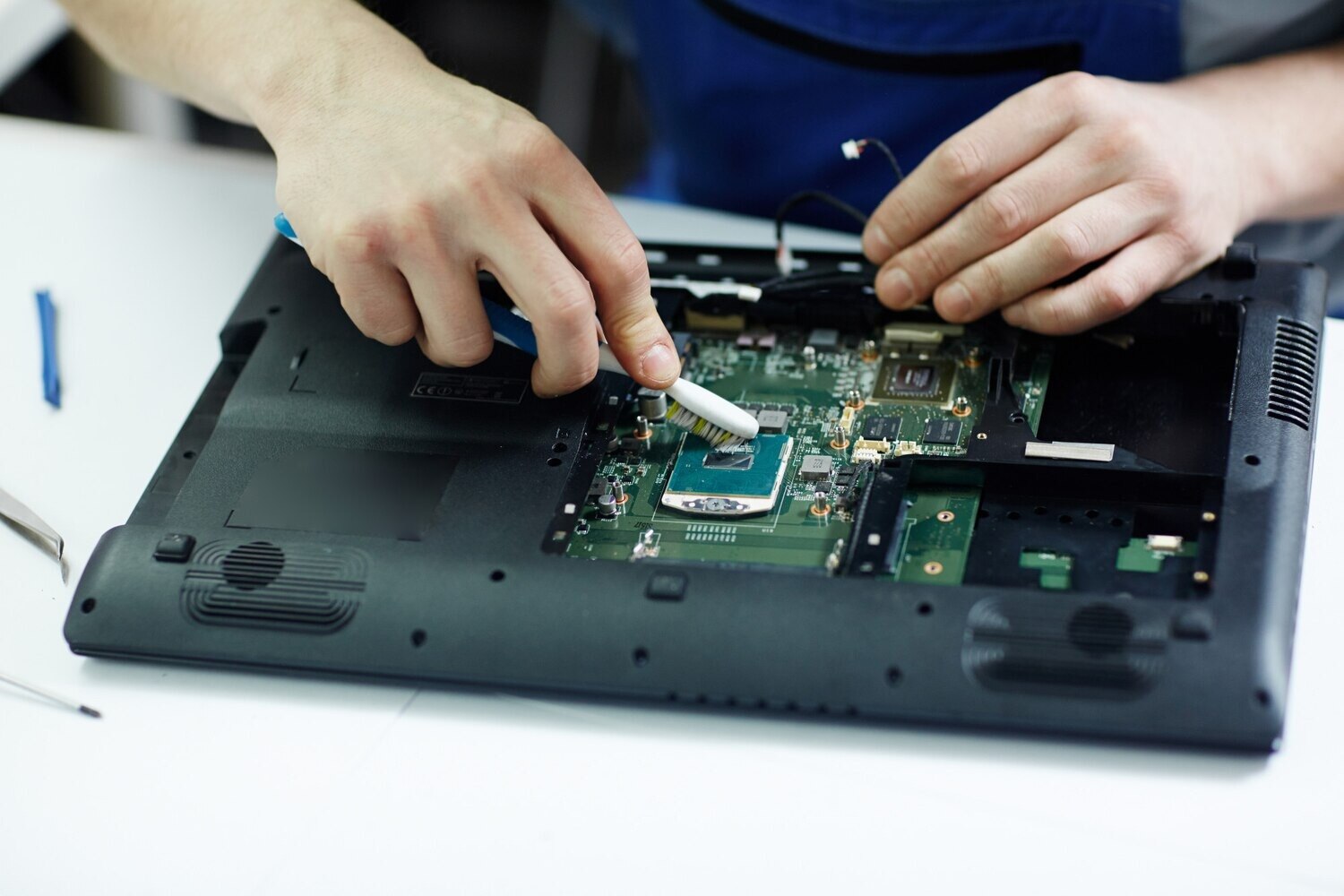
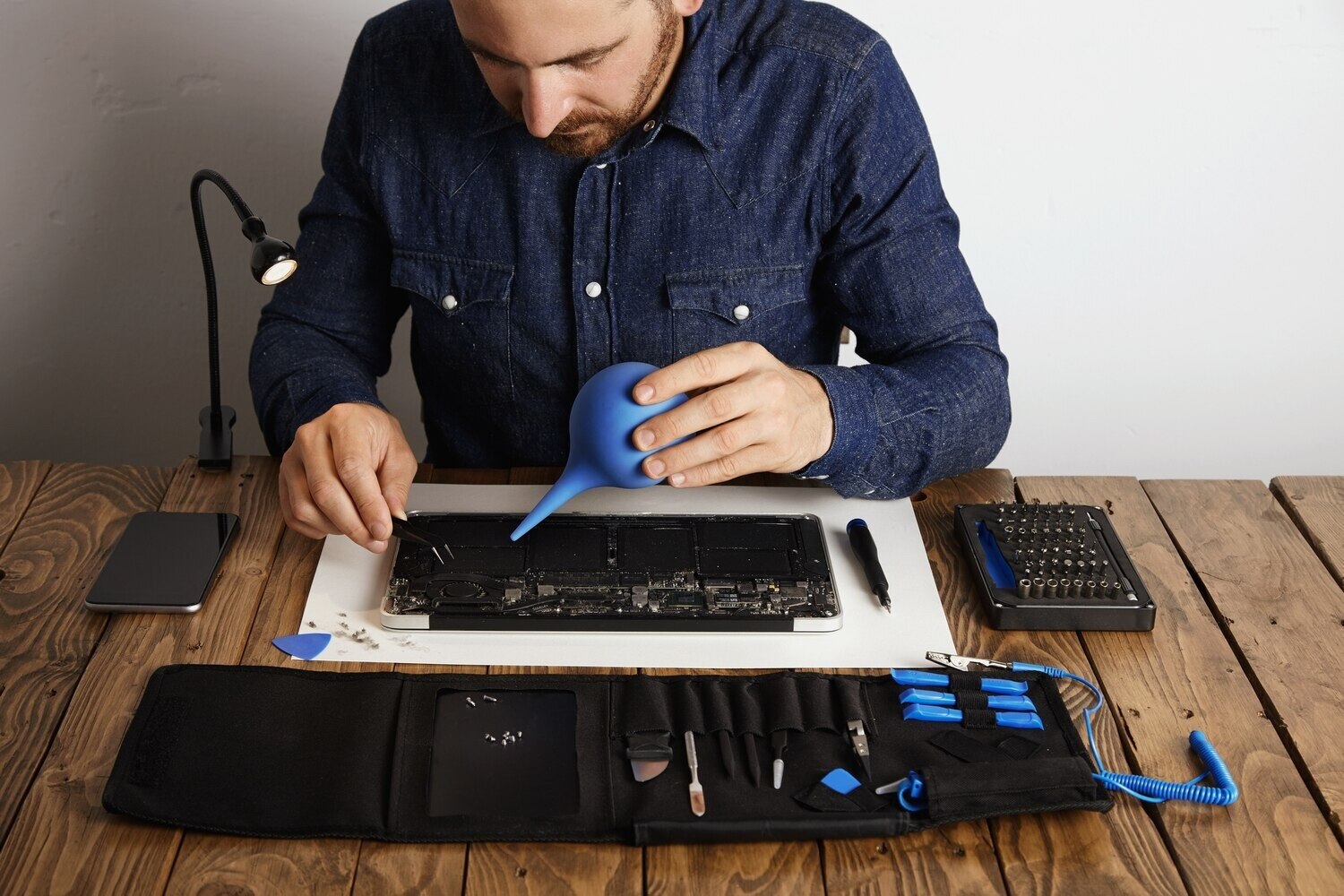
Windows Memory Diagnostic, SSD health and free-space checks, temperature and fan observations, power-adapter checks, and exact-model firmware updates separate software faults from bad RAM, storage, GPU or motherboard hardware. These are core laptop software troubleshooting Hinjewadi steps.
Avoid random driver sites, driver-updater utilities, deleting unknown devices, repeated forced shutdowns, and BIOS updates for unrelated Windows driver errors. Use Driver Verifier only selectively, with a recovery plan; it can trigger crashes and make an unstable laptop harder to boot.
How to choose help without risking your data or time
Choose help by balancing four costs: money, technical risk, privacy and time without the laptop.
| Option | Cost | Technical risk and privacy | Time without device |
|---|---|---|---|
| Self-service | Lowest | You control data, but a wrong driver or reset can worsen boot failure | Usually minutes to a day |
| Microsoft support | Low to moderate | Good for Windows tools; remote access requires careful privacy control | Often same day, hardware issues remain |
| Laptop manufacturer | Moderate | Best model-specific drivers and warranty alignment | Depends on courier or authorised service process |
| Local repair centre | Varies | Faster hands-on diagnosis; verify data handling and technician access | Often shorter if appointment and parts are available |
Before handover, back up documents and verify the BitLocker recovery key at account.microsoft.com/devices/recoverykey. A Windows password does not unlock every encrypted drive after firmware or motherboard work. Give administrator access through a temporary account or in person, not by sending your main password in chat.
If Windows cannot boot, tell the technician whether Safe Mode or the Windows Recovery Environment opens. Do not approve a reset or reinstall until data recovery and the BitLocker key are addressed.
For laptop repair services in hinjewadi for driver errors, ask:
- Is there a diagnostic fee, written fault finding and expected diagnostic time?
- Will you obtain approval before parts work, and what data-handling policy and repair warranty apply?
- Do you support this laptop brand and Windows version, and will you record driver, build and test results?
- What post-repair testing, appointment rules, service-area limits and pickup or drop-off options apply?
Laptop Plus - Complete Laptop Service & Rental can be compared with other local providers after confirming these points and obtaining a written estimate.
Related services
LAPTOP REPAIRING Committed to giving our clients, a solution that best fits their needs, the laptop repairs at Laptop+ are Fast, Reliable and Expert. View product → |
Laptop Servicing Thorough exterior and interior cleaning for optimal performance. Dust and debris removal from vents and cooling fans. View product → |
What a proper repair should prove before you take the laptop back
A competent laptop driver error repair Hinjewadi begins with diagnosis, not immediate reinstallation. The technician should discuss backup and BitLocker recovery access, check hardware, use Microsoft Windows Update or the exact model’s manufacturer support page, and record the Windows build, driver version, Device Manager status code and crash-dump result. A short idle test proves little.
- Confirm the laptop model, Windows edition and build, then preserve or discuss backup options before changing drivers or firmware.
- Check C:\Windows\Minidump, Reliability Monitor and Event Viewer, and identify whether the dump names a driver or shows a recurring pattern.
- Test RAM, SSD health and free space, temperatures, fan behaviour, power-adapter stability, GPU operation and motherboard symptoms.
- Install the verified driver cleanly, record its source and version, and explain whether the issue is Code 10, Code 19, Code 28 or Code 43 rather than repeating the same package.
- Demand repeated restart cycles, sleep-and-wake tests, Wi-Fi and display checks, and the workload that originally triggered the blue screen. “No crash at the counter” is not enough.
A driver fault loses priority when corrupted Windows files, an incompatible driver, overheating, faulty RAM, a failing SSD, a bad GPU or damaged motherboard remains plausible. DISM and SFC repair Windows components; driver replacement changes software, but none guarantees a cure for physical failure.
Malware needs broader remediation, liquid damage needs board inspection, cracked displays need parts repair, and failing storage needs data-preservation planning. Unsupported Windows installations may have no stable driver path.
Frequently asked questions
What evidence helps identify the driver or device causing a blue screen?
Record the stop code, photograph the error, inspect minidump files and Event Viewer, and note recently installed drivers or hardware.
What is a safe troubleshooting sequence for driver and Windows file errors?
Back up your data, start with Windows recovery options, remove suspect drivers, install drivers from the manufacturer, and run System File Checker and DISM when appropriate.
How can you choose laptop repair help without risking your data or time?
Ask how the provider protects your files, whether they explain the diagnosis before replacing parts, and what testing and repair records you will receive.
What should a proper blue screen repair prove before you take the laptop back?
The laptop should complete repeated cold starts, sleep and wake cycles, hardware checks, Windows updates and normal workload testing without another blue screen.
Keywords