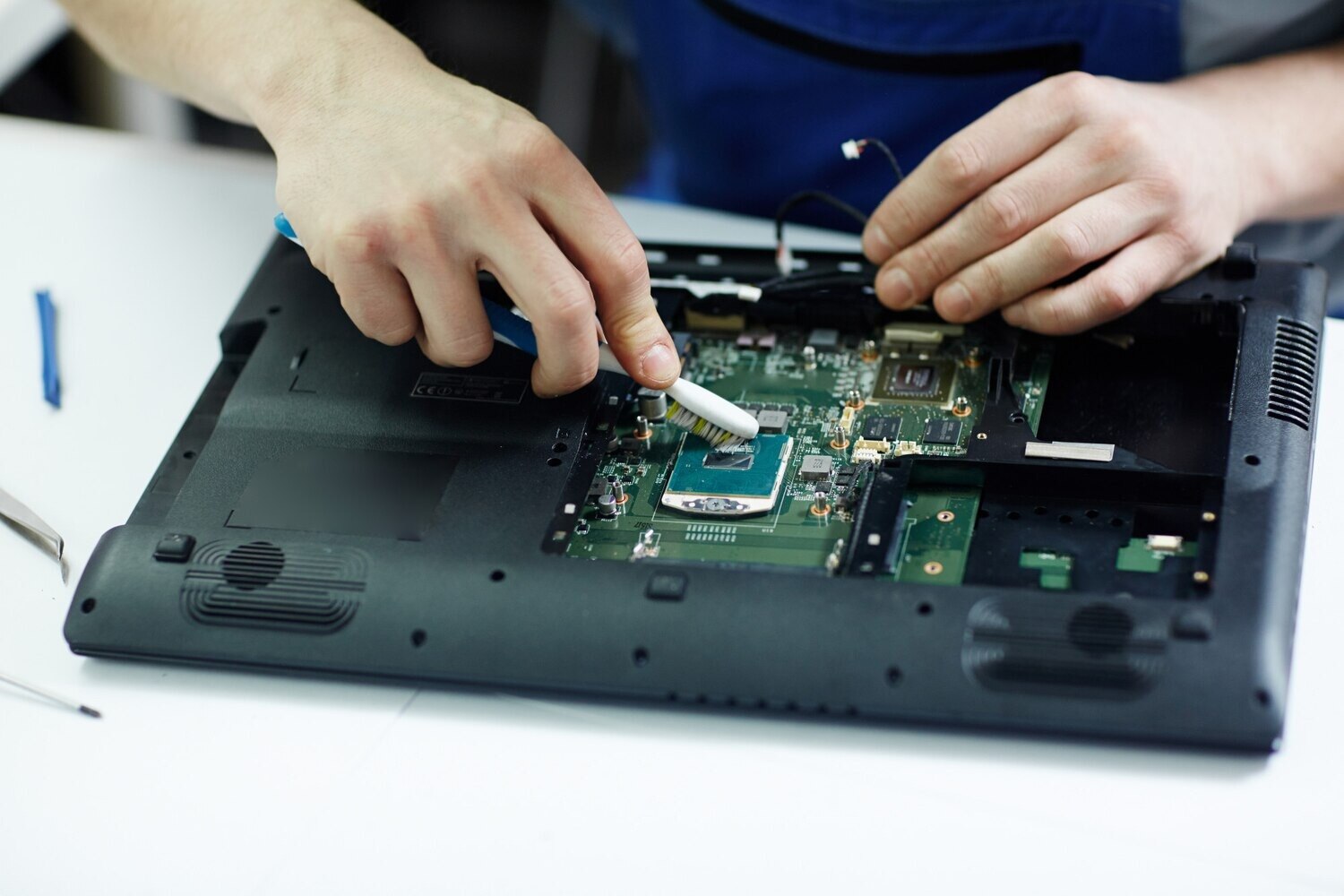
A laptop that says “plugged in” but stays at the same percentage has a different fault path from one that will not power on at all. You will learn how to read the symptoms, perform safe checks, identify battery and charger risks, and compare a proper charging or power diagnosis before approving repair work.
Key takeaways
- Match the symptom to the fault before buying a replacement part.
- Test another compatible charger and inspect the port without forcing the plug.
- Ask for charging voltage, battery health and motherboard circuit test results.
- Compare warranty, part quality, turnaround time and the written diagnosis.
Which charging or power symptom does your laptop have?
A charging symptom narrows the fault; it does not automatically mean a dead battery. Use the exact behaviour when comparing laptop repair services in Ravet or searching for laptop charging repair Ravet.
| Symptom | Likely fault category | What to check |
|---|---|---|
| No charging icon | Adapter, cable, DC jack, USB-C port, input fuse, charging circuit, or driver | Test adapter recognition and charging status in the operating system |
| Charging starts and stops | Damaged cable, loose jack, unstable adapter, USB-C port, or board connection | Movement-sensitive charging points to a mechanical fault |
| Charges only at one cable angle | Loose DC jack, cracked solder joint, damaged plug, or defective USB-C port | Stop forcing the connector; repeated movement can damage the motherboard |
| Battery stuck at one percentage | Battery-management software, driver, preservation threshold, gauge fault, or battery failure | A charge limit can be intentional; a frozen reading needs testing |
| Sudden shutdowns | Battery with lost capacity or high internal resistance, overheating, adapter failure, or power circuit fault | Shutdown under load is not proof that the battery alone failed |
| Works only with adapter connected | Degraded battery, disconnected battery, battery fuse, or charging circuit fault | Confirm whether the battery holds charge |
“Plugged in but not charging” still allows adapter, port, battery and charging-controller tests. “Will not power on” requires checks of the power button, standby rails, short circuits and motherboard power sequencing.
A desktop has no charging battery. Intermittent shutdowns require checks of the AC cable, wall supply, power-supply unit, power switch and motherboard.
What can you safely test before visiting a repair centre?
You can safely narrow the fault before visiting a repair centre without opening the laptop or forcing any connector. Before booking laptop charging repair Ravet, follow this sequence:
- Test a known-compatible charger. Read its label for output voltage (V) and current (A), and never use the wrong voltage or connector polarity.
- Inspect the cable, plug and laptop socket for cuts, scorching or looseness. Do not repeatedly bend the cable or force a plug that wobbles.
- Try a known-good wall socket, then remove USB devices, external drives and docks.
- Shut down, disconnect the charger and hold the power button for 15–30 seconds. Reconnect only the charger and start the laptop.
- Record whether it runs from battery power, from the adapter, or only when both are connected.
A USB-C plug shape proves nothing. Check USB Power Delivery support, the charger’s wattage and the cable’s wattage rating before buying a replacement. A low-wattage phone charger can fail to charge a laptop, charge it slowly, or let the battery drain during use.
Stop immediately if you see a raised trackpad, separating case seam, lifted keyboard, rocking base, unusual heat or chemical smell. Shut down, disconnect the charger, do not press or puncture the battery, and do not continue charging it.
Arrange safe battery replacement and disposal; this is a safety issue, not a routine laptop power repair Ravet test.
What should a technician test before naming the failed part?
A technician should collect the facts and test the power path before naming a failed part. Bring:
- Brand and exact model number
- Charger output printed in volts and amps
- Battery symptoms, including percentage, runtime and shutdown behaviour
- Any recent liquid spill or drop
- Exact error messages or charging notifications
- Whether the fault appears at startup or only under load
The proper sequence separates a failed battery from a charger, port or board fault.
| Test | What it establishes | Next check |
|---|---|---|
| Adapter output | Whether voltage is stable and correctly rated | Try a known-good compatible charger |
| Port and connector | Loose sockets, bent contacts or cracked joints | Inspect the DC-in board or USB-C port |
| Battery report | Capacity loss or abnormal battery data | Run Windows powercfg /batteryreport |
| Charging current | Whether power reaches the battery | Isolate the battery and charging circuit |
| Motherboard-level testing | Input fuse, charging controller and power rails | Proceed only after basic parts pass |
For Windows, compare design capacity with full-charge capacity; the displayed percentage alone can mislead. Check BIOS or UEFI charging settings, vendor battery-preservation thresholds, operating-system reports and drivers before replacing hardware. If the design permits it, test operation with the battery disconnected.
A laptop power repair Ravet diagnosis can usually preserve your storage and avoid formatting. Record encryption status and login details at intake, then obtain permission before reinstallation, drive replacement or data recovery. This matters because “plugged in but not charging” leads to a different test path from “will not power on.”
Should you replace the charger, battery, port or motherboard circuit?
Replacing the cheapest part first is poor diagnosis. Separate “plugged in but not charging” from “will not power on”: the first points to adapter, port, battery or charging control; the second also requires power-button, standby-rail, short-circuit and power-sequencing tests.
| Option | When it applies | Effort, risk and permanence |
|---|---|---|
| Charger | Output is unstable or its rating is wrong | Low risk; lasting only with the correct voltage, connector polarity and wattage |
| Battery | Capacity is degraded or internal resistance is high after charging checks pass | Moderate effort; lasting when the charging system is healthy |
| Jack or USB-C port | Socket is loose, solder is cracked, or charging depends on plug position | Moderate risk; movement can worsen board damage |
| Motherboard circuit | Adapter, port and battery pass, but charging still fails | Highest diagnostic complexity; lasting when the failed controller, fuse or power rail is correctly repaired |
A replacement adapter must match the original voltage and connector polarity. Its current capacity must meet or exceed the original, and its wattage must support the laptop under load; an under-rated unit can let the battery drain during use.
- Ask for port inspection before authorising a battery. A loose DC jack may need resoldering or replacement.
- Check whether USB-C uses a separate daughterboard. A port routed directly into the motherboard requires board-level work.
- Do not use a battery replacement as a test; it can hide a charger, fuse or controller fault.
These checks are central to a dependable laptop power repair Ravet diagnosis and any laptop service Ravet comparison. A written identification of the failed part is more useful than a low quote alone.
How do you compare laptop repair services in Ravet after diagnosis?
Choose a service that can prove its diagnosis, not one that only labels the fault “battery” or “no power.” For laptop repair services in Ravet, ask for these details in writing:
- Failed part and evidence supporting it
- Charger voltage, connector and wattage, or the battery model and capacity
- Explanation of any board-level repair, including the charging controller, fuse or power rail involved
- Repair warranty, including coverage period and exclusions
| Check | Ask the centre to test | Why it matters |
|---|---|---|
| Laptop charging repair Ravet | Charging current, USB-C Power Delivery, cable, port and DC-in board | Separates a charger or port fault from a battery or motherboard fault |
| Laptop power repair Ravet | Standby rails, power sequencing, short circuits and motherboard power circuits | “Will not power on” is not the same as “plugged in but not charging” |
| Desktop diagnosis | AC cable, wall supply, desktop PSU, power switch and motherboard | Desktops have no charging battery |
Laptop Plus - Complete Laptop Service & Rental is one option to question about these specific checks, rather than accepting a generic battery replacement.
Before payment, confirm that the laptop charges from a low battery level, recognises the adapter, operates under load and reports a stable percentage. Check every supported USB-C port, then stop if a port overheats or smells.
Record data-handling terms, encryption or login requirements, permission for reinstallation, drive replacement or recovery, and the warranty before authorising work.
Related services
LAPTOP REPAIRING Committed to giving our clients, a solution that best fits their needs, the laptop repairs at Laptop+ are Fast, Reliable and Expert. View product → |
Laptop Servicing Thorough exterior and interior cleaning for optimal performance. Dust and debris removal from vents and cooling fans. View product → |
Frequently asked questions
Which charging or power symptoms can help identify the fault?
A laptop that works on the charger but shuts down unplugged points toward battery failure. No charging light, intermittent charging, a loose connector or charging only at one angle points toward the adapter, cable or charging port. A laptop that shows no power with a known-good charger may have a motherboard power-circuit fault.
What can I safely test before visiting a repair centre?
Check the wall socket, charger indicator and cable for cuts or exposed wires. Confirm that the connector fits without force, clean visible dust from the port with the laptop switched off, and test a compatible charger with the correct voltage and connector. Do not open the charger, probe the battery, or use a higher-voltage adapter.
What should a technician test before naming the failed part?
Ask the technician to test the adapter output, charging-port continuity, battery health, charging current and motherboard input and charging circuits. Request the measured result and the reason the proposed part is responsible instead of accepting a diagnosis based only on the charging icon.
Should you replace the charger, battery, port or motherboard circuit?
Replace the charger when its output is absent or unstable, the battery when its health is poor or it cannot hold charge, and the port when charging changes with connector movement or the port is physically damaged. Choose motherboard repair only after the adapter, battery and port have passed testing.
How do you compare laptop repair services in Ravet after diagnosis?
Compare the written fault description, replacement-part make and specification, labour charge, repair time, data-safety policy and warranty period. Laptop Plus - Complete Laptop Service & Rental is one local option to include when comparing laptop repair services in Ravet, laptop charging repair Ravet and laptop power repair Ravet.
Keywords